Zune HD vs. iPod Touch: Who will win?

0 comments
The days are being counted down slowly, and most people can’t wait until they get their little hands on the upcoming Zune HD. But there is still a reasonably big question that many people are asking themselves. Will the Zune HD be able to take down or even take on the iPod touch? One thing’s for sure, the iPod touch is up for some severe competition.

Microsoft has done a great job with the new Zune HD with the overall design and features of the Zune. With the Zune HD rumours being leaked all the way from April until now, there should be enough pieces of the puzzle to have a good comparison between the two.

Pricing

A few days ago Amazon leaked the pricing for the Zune HD pre-orders. The 16GB Zune HD will set you back $220 while the 32GB model will cost you $290. Microsoft knows that it will have a hard time trying to compete with the iPod touch, so it set the price $79 lower than the 16GB iPod touch and $109 lower for the 32GB version.

Screen Display

The Zune HD features a 3.3 inch OLED touch screen display, 0.2 inches smaller than the iPod Touch’s. But the Zune HD has a slight advantage over the iPod touch, featuring display technology that doesn’t require a backlit light to function, therefore sucking less juice out of it.

Connectivity

It comes with Wi-Fi including music streaming; while the iPod Touch can’t exactly do it straight from the box, it can stream music over Bluetooth (A2DP). The sort of Bluetooth technology the Zune HD will incorporate is yet to be found out. Compared to the iPod Touch, the Zune HD boasts the HD radio tuner and the ability to connect it to TV’s (via a dock sold separately) and play High Definition video files.

Applications & Music

Apple has thousands upon thousands of applications for the iPod Touch and more growing every day. The chance that Microsoft has of switching customers from the App store to the Zune Marketplace seems quite dim. This is not saying that it will be a total failure, but it needs the community. Who else makes those applications for iPod Touch? If Microsoft can get the Zune to have as many applications and as many app developers as Apple have, there should be no reason why the Zune HD can’t take over.

Apple sells its songs individually, while Zune Marketplace will use a subscription method which in our opinion is a much enhanced way of selling music. For the gaming part, even Nintendo has been put to shame with the iPod Touch’s gaming applications that are out now. We can only hope that the powerful NVIDIA Tegra processor in the player will be better than the existing iPod Touch’s or at least as good. Fingers crossed that it will be a good gaming platform.

Internet Browsing

The Zune HD will also have included an Internet Browser, a specially designed version of Internet Explorer Mobile. But again, it has to compete with Safari Mobile that is praised for its swift page rendering.

Conclusion

Both the Zune HD and the iPod touch have their advantages and their disadvantages. They are very similar indeed, although because of the slightly lower price range and slightly improved features, the Zune HD should have a smooth road ahead. Little is known just yet about the battery life just yet, but one thing is for sure, Apple watch out, there’s a new media player in town! As for the rest of us, we can hardly keep our mouths shut about the Zune HD, only a few sleepless nights left folks!

The Zune HD Showcased at Best Buy

0 comments
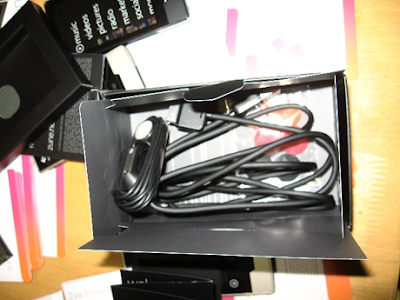
The Zune HD Showcased at Best BuyWe all got a peep at how the outer packaging for the Zune HD looks like, but now we head for the main course. Inside the box is the Zune HD of course, with the same nice hard glass screen as the Zune 120. It will also come with a number of games, but with a chunky selection of games and applications that will be available at launch time.

It is also confirmed that it will come with the same headphones as the Zune 120 did, huge fold-out instructions, and a USB cable. Hit the picture above for full pics and even video coverage of the Zune HD provided by Zune Spring.

How to minimize Firefox to the system tray

0 comments
If you are a crazy multi-tasker who has like 10 minimized windows that can’t even fit in the Windows Task Bar, or if you don’t want anyone to see you have the Firefox browser open, then you need the MinimizeToTray Firefox Add-on.

This allows you to minimize any Mozilla window to the system tray just by clicking the minimize button, or with some minor configuration it can be minimized to the tray even when clicking the close button. It is a great way to free up some space when you have a lot of windows open.

Note: The steps below are outlined as they were at the time of making. We cannot guarantee that the images or steps used will be the same for you. Please use this only as a guide!

Firstly visit the link for the Add-on: https://addons.mozilla.org/en-US/firefox/addon/10488

Then click the ‘Add to Firefox’ button.


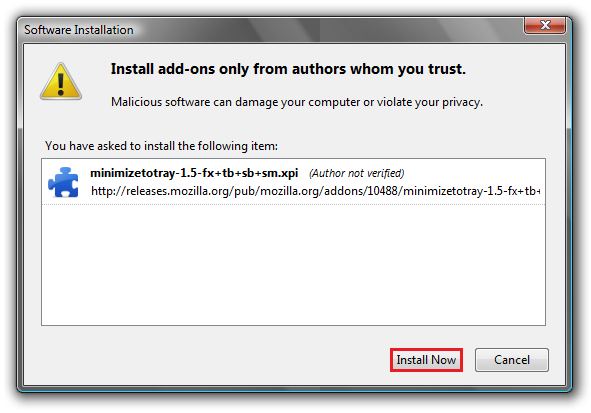
When a window pops up, click ‘Install now’.


Lastly, you must restart Firefox for the Add-on to take effect. Enjoy minimizing Firefox to the system tray!

SuperSpeed USB 3.0 is your new best friend!

0 comments
Forget the ever so slow USB 2.0 devices, behold a new era is here. USB 3.0, aka SuperSpeed USB, is the next amendment of the Universal Serial Bus originally made in 1996 by an association led by Intel.

USB 3.0 promises high transfer rates up to a whopping 4.8Gbps (compared to 2.0 with 480Mbps), increased device current draw to better handle power-sucking devices, increased maximum bus power, support for new transfer types, and new power management features. They also tell us that it will come with new cables and connectors that will allow for high speed data transfers, including backwards compatibility with USB 2.0 computers and devices.

Did you think that USB 2.0 was fast? Think again! Because there are ever increasing demands in data transfers with the increase in high-definition video, terabytes of storage and huge megapixel count digital cameras, when it comes down to a measly 480Mbps, it really isn’t that fast.

SuperSpeed USB 3.0 isn’t only about huge data transfer rates, but is also perfect for improving the interaction between the host computer and device. It can be utilized to use more power when needed and less power when it isn’t needed. Pretty nifty huh? More juice sucking devices could be bus powered, while devices that were battery powered that formerly used bus power, could literally charge quicker. And when only a small amount of power is needed, the device or host computer will turn idle, the power saving state.

USB 3.0 has been intended right from the start to work with USB 2.0. Even though USB 3.0 has different physical connections including cables to take benefit of the lightning fast ability, the actual shape of the connector itself remains the same, the usual rectangle with the same four USB 2.0 contacts in the same location.

Devices such as external hard drives, external Blu-Ray drives, digital video cameras, video display solutions and High Definition cameras and Webcams will all have eased pressure when used with USB 3.0. All these including the high end flash drives have pushed the 2.0 limits quite hard so luckily 3.0 will come and give us more leg room.

Good news but when will it actually hit the market, you may ask? USB hubs and controllers are anticipated to be obtainable near the later year of 2009. On a mass scale, host controllers, devices and products that support SuperSpeed are expected to be available not before 2010.

USB 2.0 might be slowly done away with, similarly with USB 1.1, but until manufacturers start to equip motherboards with USB 3.0 ports, USB 2.0 will continue to live on for a short while longer. Get set to experience USB data transfers like you have never seen before!

Find out How Long Your Computer Was On

0 comments
Ever wondered how long your computer was on for? Or has your mum told you to get off the computer because she thinks you have been on for the whole day and want to prove her wrong? The really simple guide below will show you how to do just that!
Below is outlined how it is done using the Windows Vista OS. If you have Windows XP refer to the steps after this.

Firstly open up Windows Task Manager by pressing CTRL+SHIFT+ESC. Then click the ‘Performance’ tab. Have a look where it says ‘System’. Then below that you will see it say ‘Up Time’ you will see the amount of time your computer has been on, in the order of Hours:Minutes:Seconds.

For the Windows XP users, it is just a tad more complicated.
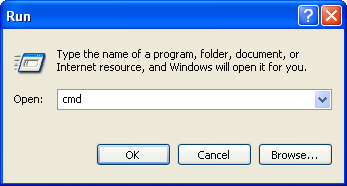
Hit the Start menu, then click on ‘Run’ and then type in ‘cmd’ which will open up Command Prompt.


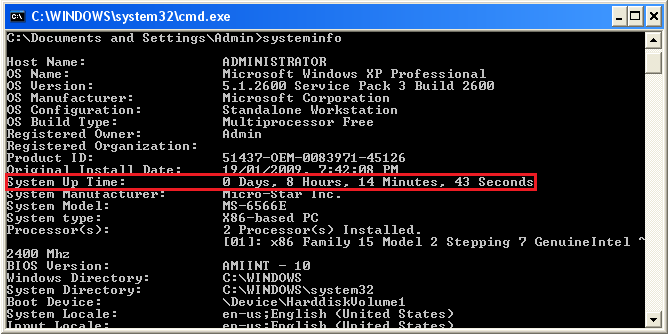
Then simply type in ‘systeminfo’ without quotation marks as always. It will show the amount of time your computer has been on under ‘System Up Time’.


Last but not least for all you Mac Lovers out there that still don’t know how to go about doing this, navigate to Applications>Utilities>Terminal then type in ‘uptime’ and hit the enter key.

Now when your parents tell you to get off your computer because you have been on for the whole day, you can retaliate by showing them pure proof of how long you really have been on for!

Is this the real Zune HD box?

0 comments
One tweetster managed to get a camera out and snap a picture of the supposed Zune HD box. With the username ‘crazyphoneguy’, he states that “This is going to be the box for the new Zune HD”. But do you think this is the real deal? We don't know about you, but we have our hopes up, and think it's the real McCoy.

ASUS’ Eee keyboard expected this October

0 comments
Introduced in January 2009, the EEE keyboard is a fully fledged keyboard, including a built in PC that comes with a 5 inch interactive touch screen display, Wi-Fi, Ethernet, microphone and speaker. With the ability to connect to existing displays and weighing less than 2 pounds, it sure looks like it will please most people.

Seeing that it had been announced in January, most are starting to get tired of the long and tiresome wait. But never fear, ASUS has finally made an announcement that will see the new ASUS Eee keyboards later this October. Expect the price to be anywhere from about the $400-$500 mark. A little costly, but hey this ain’t no ordinary keyboard!

PS2 backwards compatibility on PS3 gone for good!

0 comments
You have heard correctly folks! Say goodbye to your beloved PS2 playable games on the PS3 and according to Sony's John Koller, "it's not coming back". The PS3 Slim looks really great in all but we were somewhat sad when it was announced to have no PS2 compatibility.

Most people when hearing this news will ask themselves one important question, why? Most of the people and next generation gamers are purchasing the PS3 mainly for PS3 games. It was estimated that about 80 to 90 percent are purchasing it primarily for PS3 games.

So there you have it, for most of the community out there, they will be left heartbroken. But for the others who have not yet managed to get their hands on an expensive PS3 won’t be as devastated since they haven’t experienced the loss. Rest in Peace PS2 Backwards Compatibility, Rest in Peace.

Fix Windows black screen after login

0 comments
Have you ever started up your computer, logged in, and then find yourself staring at a black screen with just your mouse cursor showing? For the people that have, this guide should help you out.
Firstly open up the Task Manager by pressing CTRL+SHIFT+ESC. If for some reason it doesn’t appear, then you are out of luck.

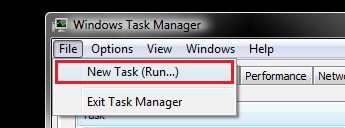
After you are in the Task Manager navigate to File>New Task(Run…)


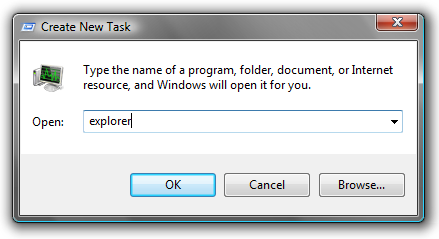
When a new window will appear, type ‘explorer’ without the quotation marks. This will open up the process called explorer.exe which is the process that normally runs as soon as you login. It is the process that makes your desktop, desktop icons and the windows taskbar to appear.


The next step is to edit some Registry Files. We are not held responsible for any loss or damage that this might cause to your computer. Edit these files at your own risk.

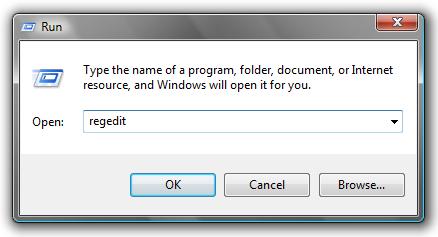
Click the Start Menu and then choose ‘Run’. Or for the few using Vista, hit the Start Orb and in the search box type ‘Run’ and click on the application when it appears. When the Run window appears type in ‘regedit’. You must have Administrator Privileges in order to run the Registry Editor.


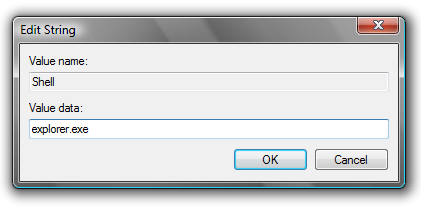
Then navigate through all these folders: HKEY_LOCAL_MACHINE\SOFTWARE\Microsoft\Windows NT\CurrentVersion\Winlogon. After you have clicked on the Winlogon folder, find the string called ‘Shell’ and double click on it.


It should only appear with ‘explorer.exe’. Delete the other values that it has and type in explorer.exe as the image below shows. Then hit the OK button!


NOTE: If you had any other values inserted instead of explorer.exe, it is recommended that you scan your computer with a Virus scanner, as it may be infected with Malware.

Now simply restart or logoff your computer and see if the black screen problem has been fixed. Enjoy!

What is Defragmentation and does it make my computer run any faster?

2 comments
Imagine you have a filing cabinet with all your documents and papers in it, but it is a total mess. You have papers thrown everywhere and folders that are almost about to explode full of junk. If you would try to find something that you are looking for, do you think you would have trouble finding it? Of course! Not to mention the amount of time it would take too.

But if you would have your filing cabinet neat and tidy, arranged all in a nice row, you could find what you are looking for almost instantly! This is in a way, how it works with your everyday computer.

As you use your computer, your files will begin to become fragmented. In general this will cause your computer to become laggy and very slow to respond. Defragmenting will generally improve the system performance.

Some applications may rely on multiple files in order to run, but if those files are scattered to either ends of the hard drive, your computer will have more work to do and take more time to do the task required. Your drive will be swifter if all the files are in one place, not scattered to separate ends of the drive.

Defragmenting organizes your files so that they are non-contiguous. By not defragmenting your hard drive regularly, your files are in fragments of data. Fragmentation makes your hard disk do a huge load of extra work that can slow down your computer. Disk Defragmenting rearranges fragmented data so your hard disk can work more efficiently and will leave your free hard disk space in one big portion. The new files that will be saved will be well organized and in a tidy manner.

Regular defragmenting may also help to increase the overall hard disks life-span. Not defragmenting regularly may put extra strain on the hard disk by having to do extra effort to find file fragments. This can also cause computer crashes, besides slowing down your system.

Some may report that defragmenting too often will stress out the drive and thus reduce its life-span. If defragmented regularly, the less time it will take and the less stress it will have on the drive. It is recommended to defragment your drive regularly, plus as soon as you get your hands on a new computer, as it will maintain your computers performance.

For those that do not know how to defragment on a Windows based computer, simply navigate to 'My Computer' or 'Computer' then right click and select 'Properties'. Up the top select the 'Tools' tab then under 'Defragmentation' select 'Defragment Now...’ Refer to the picture below for any further help.


NOTE: The first time you do this, it will take a while since it has got a massive load to defragment. Just be patient and happy Defragmenting!